

Stop Polluting Your Machine: Why Devcontainers Are the Way Forward
How devcontainers eliminate environment drift, keep projects isolated, and make AWS multi-account workflows painless.
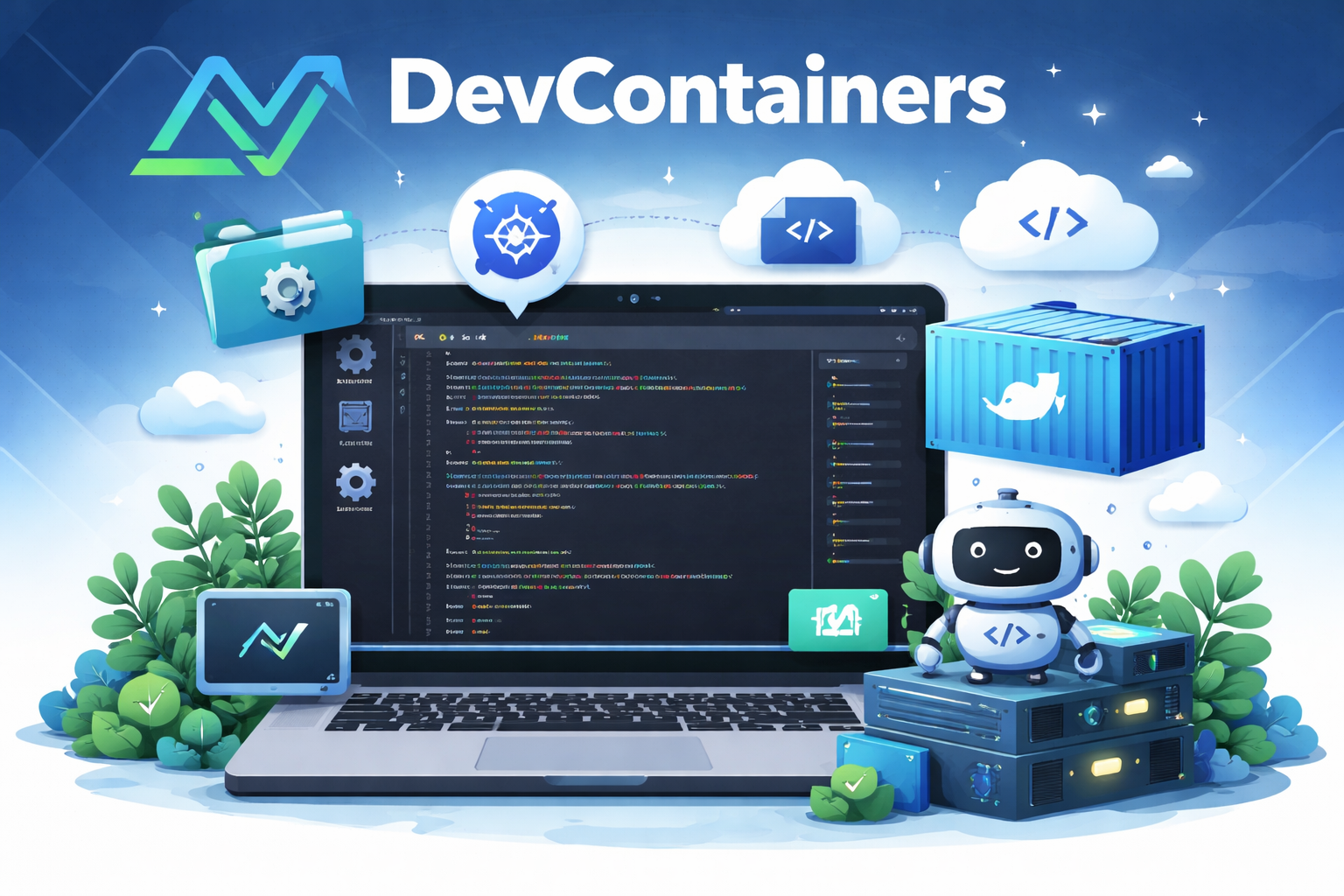
Stop Polluting Your Machine: Why Devcontainers Are the Way Forward
Every developer has been there. You clone a repo, follow the README, and spend the next two hours debugging why Node 18 is fighting with Node 20, why your global Python packages are leaking into a virtualenv, or why aws sts get-caller-identity is returning the wrong account. Your laptop has become a graveyard of conflicting toolchains, and you can't remember which project needs what.
Devcontainers fix all of this.
What Is a Devcontainer?
A devcontainer is a full development environment defined as code a Docker container (or set of containers via Docker Compose) that your editor spins up and attaches to automatically. VS Code, JetBrains, and GitHub Codespaces all support them natively. You open the project, the editor reads .devcontainer/devcontainer.json, builds the image, and drops you into a shell that has exactly the tools, runtimes, and configuration that project needs.
Nothing more. Nothing less.
Why Devcontainers Beat Local Development
1. True Isolation Between Projects
When every project runs inside its own container, there is no cross-contamination. Project A can use Node 18, Python 3.10, and Terraform 1.5. Project B can use Node 22, Python 3.12, and Terraform 1.8. They never interfere with each other because they literally cannot see each other.
No more nvm use, no more pyenv local, no more "it works on my machine."
"But Can't I Just Use Docker Compose for That?"
You're probably thinking: I already run my app in Docker Compose. Same thing, right? Not even close.
Plain Docker Compose gives you containerized services, not a containerized development environment. When you use raw Compose without a devcontainer, you're typically editing code on your host and mounting it into a container that runs your app. The moment you need to install a new dependency, change a system library, or debug something, you're either shelling into the container with docker exec losing your editor, extensions, debugger, and git config or you're rebuilding the entire image.
And rebuilding is where the pain starts. Docker's layer cache is aggressive and opaque. You add a new apt-get install line and the cache serves you a stale layer because the RUN instruction above it didn't change. You pip install a new package but the cached layer still has the old requirements.txt baked in. You waste 20 minutes before realizing you need --no-cache, which then rebuilds everything from scratch including the layers that were fine. It's death by a thousand docker build invocations.
Devcontainers solve this because your editor is inside the container. VS Code (or JetBrains) attaches directly to the running environment. Your extensions, your debugger, your terminal, your IntelliSense all of it runs against the container's filesystem and toolchain. You're not shelling in from the outside; you're working from the inside. Need to install something? Run it in the integrated terminal. It persists in the container's writable layer until you rebuild, and when you do rebuild, the devcontainer.json lifecycle hooks (postCreateCommand, postStartCommand) handle re-running your setup steps automatically no manual intervention, no stale caches biting you.
The difference is subtle but massive: Docker Compose gives you isolated runtime. Devcontainers give you an isolated workspace.
2. Onboarding in Minutes, Not Days
A new teammate clones the repo, opens it in VS Code, clicks "Reopen in Container," and they're done. The Dockerfile and docker-compose file are the setup instructions. There is no 47-step Confluence page to follow. There is no tribal knowledge about which Homebrew formula to install. The environment bootstraps itself.
3. Reproducible Across the Team
Everyone runs the same OS, the same package versions, the same system libraries. If it works in the container, it works for everyone. CI/CD can use the same Dockerfile, so you close the gap between local dev and production even further.
4. Your Host Machine Stays Clean
Your laptop is for browsing, email, and running Docker. That's it. You never install project-specific tooling on your host again. When you're done with a project, you delete the container. There's nothing to uninstall.
The Real Power Move: Per-Project AWS Credentials with SSO
Here is where devcontainers go from "nice to have" to "I can't go back." If your organization uses AWS SSO (IAM Identity Center) with multiple accounts and you should you've probably dealt with the headache of switching profiles. You run aws sso login --profile staging, then forget to pass --profile staging on your next CLI call, and suddenly you're looking at production resources wondering why your data looks different.
Devcontainers eliminate this entirely.
How It Works
The pattern is simple:
- Configure AWS SSO profiles on your host machine. Each profile maps to a specific AWS account and role via
~/.aws/config. - Mount
~/.awsinto the container. This gives the container access to your SSO session tokens without duplicating credentials. - Set
AWS_PROFILEas an environment variable in the container. Every AWS CLI call, every SDK initialization, every Terraform plan inside that container will automatically use the correct profile no--profileflag required.
This means each project's devcontainer is hardcoded to its AWS account. You literally cannot accidentally run a command against the wrong account because the environment won't let you.
Example: ~/.aws/config on Your Host
[profile nebustream-dev]
sso_session = nebustream
sso_account_id = 111111111111
sso_role_name = DeveloperAccess
region = us-east-1

[profile nebustream-staging]
sso_session = nebustream
sso_account_id = 222222222222
sso_role_name = DeveloperAccess
region = us-east-1

[profile nebustream-prod]
sso_session = nebustream
sso_account_id = 333333333333
sso_role_name = ReadOnlyAccess
region = us-east-1

[sso-session nebustream]
sso_start_url = https://yourawsstarturl.awsapps.com/start
sso_region = us-east-1
sso_registration_scopes = sso:account:access
Each profile points to a different AWS account. The sso-session block handles the shared login flow so you only authenticate once.
Example: docker-compose.yml
Here's a real-world devcontainer setup. Notice the AWS_PROFILE and the ~/.aws volume mount that's the entire trick.
services:
  devcontainer:
    container_name: devcontainer
    build:
      context: ..
      dockerfile: .devcontainer/Dockerfile
      args:
        NEBUSTREAM_EMAIL: ${NEBUSTREAM_EMAIL}
        NEBUSTREAM_USERNAME: ${NEBUSTREAM_USERNAME}
    command: ["sh", "-c", "tail -f /dev/null"]
    volumes:
      - ..:/workspace:cached
      - ~/.aws:/root/.aws # Mount host AWS config + SSO cache
      - /var/run/docker.sock:/var/run/docker.sock
    environment:
      - AWS_PROFILE=nebustream-dev # Locked to this account
      - NODE_ENV=local
      - AWS_DEFAULT_REGION=us-east-1
    ports:
      - "3000:3000"
      - "5173:5173"
    networks:
      - localstack-net

  nginx:
    image: nginx:stable
    container_name: nginx
    depends_on:
      - superset
      - limesurvey
      - pgadmin
    ports:
      - "80:80"
    volumes:
      - ./nginx/nginx.conf:/etc/nginx/conf.d/default.conf:ro
    networks:
      - localstack-net

  superset:
    build:
      context: .
      dockerfile: ./Dockerfile.superset
      args:
        COGNITO_CLIENT_ID: ${COGNITO_CLIENT_ID}
        COGNITO_CLIENT_SECRET: ${COGNITO_CLIENT_SECRET}
    ports:
      - "8088:8088"
    depends_on:
      - postgres-superset
    networks:
      - localstack-net

  postgres:
    image: postgres:17.2
    environment:
      - POSTGRES_USER=admin
      - POSTGRES_PASSWORD=admin
      - POSTGRES_DB=cadash_db
    ports:
      - "5432:5432"
    volumes:
      - pgdata:/var/lib/postgresql/data
    networks:
      - localstack-net

  pgadmin:
    image: dpage/pgadmin4:9.10.0
    environment:
      - PGADMIN_DEFAULT_EMAIL=admin@admin.com
      - PGADMIN_DEFAULT_PASSWORD=admin
    ports:
      - "5050:80"
    volumes:
      - pgadmin_data:/var/lib/pgadmin
    depends_on:
      - postgres
    networks:
      - localstack-net

networks:
  localstack-net:
    driver: bridge

volumes:
  pgadmin_data:
  pgdata:
The two lines that matter most:
volumes:
  - ~/.aws:/root/.aws
environment:
  - AWS_PROFILE=nebustream-dev
That's it. Every aws CLI call, every Boto3 session, every CDK deploy inside this container now targets nebustream-dev automatically. No flags. No mistakes. No "oh no, that was prod."
What This Looks Like in Practice
Once you're inside the container, AWS just works:
# No --profile flag needed. Ever.
aws sts get-caller-identity
# → Account: 111111111111, Role: DeveloperAccess

aws s3 ls
# → Lists buckets in the dev account only

aws lambda list-functions
# → Only dev lambdas

npx cdk deploy
# → Deploys to dev. Always.
If you need to work on the staging project, you open that repo's devcontainer, which has AWS_PROFILE=nebustream-staging. You don't switch profiles you switch projects. The environment follows the code.
Handling SSO Login
The one thing you still do on your host machine is the initial SSO login:
# Run this on your host (not inside the container)
aws sso login --profile nebustream-dev
Because ~/.aws is mounted into the container, the SSO token cache is shared. The container picks up the active session immediately. Most SSO sessions last 8–12 hours, so you typically log in once at the start of your day.
Tip: If your SSO session expires mid-work, you'll see an
ExpiredTokenerror inside the container. Just runaws sso loginon your host again the container will pick up the refreshed token automatically since the directory is mounted.
Going Further: Full Stack in a Box
The example above isn't just a devcontainer it's an entire local stack. Postgres, pgAdmin, Nginx, Superset, all wired together on a shared Docker network. This means:
- Backend developers can test API endpoints against a real database without installing Postgres locally.
- Frontend developers can run the app on port 3000 and hit the local API through Nginx, just like production.
- Data engineers can query Superset dashboards locally with the same Cognito auth flow.
Everyone gets the same stack. Everyone's environment is defined in the same docker-compose.yml. Nobody's debugging a "well it works on my Postgres 14 but you're running 17" issue.
The Devcontainer Mindset
Adopting devcontainers isn't just a tooling change it's a mindset shift. You stop thinking of your laptop as a development environment and start thinking of it as a host for development environments. Each project carries its own world with it. When you open the project, the world spins up. When you close it, the world goes away.
Your machine stays clean. Your AWS accounts stay safe. Your teammates stay productive.
If you haven't tried devcontainers yet, start with one project. Add a .devcontainer folder, write a Dockerfile, set your AWS_PROFILE, and never look back.
Maybe I need to write a whole segment on how to get everything set up... Stay Tuned People!!!!
More Articles
AI Chatbot Development Services: What They Include, What They Cost, and How to Choose
April 10, 2026
AI chatbot development services explained: what a real engagement covers, how to evaluate vendors, what it should cost in 2026, and the mistakes that turn chatbot projects into expensive shelf-ware.
SOC 2 Compliance for Startups: Why It Matters and How to Get Started in 2026
April 10, 2026
SOC 2 compliance for startups: understand why SOC 2 is essential for SaaS companies in 2026, the business benefits, a practical step-by-step checklist, cost breakdown, and how to maintain your certification year-round.
Why Your Business Needs Custom Software Design and Development Over Off-the-Shelf Tools
March 26, 2026
Discover why custom software design and development beats off-the-shelf tools. Learn how a custom software application development company can scale your business.